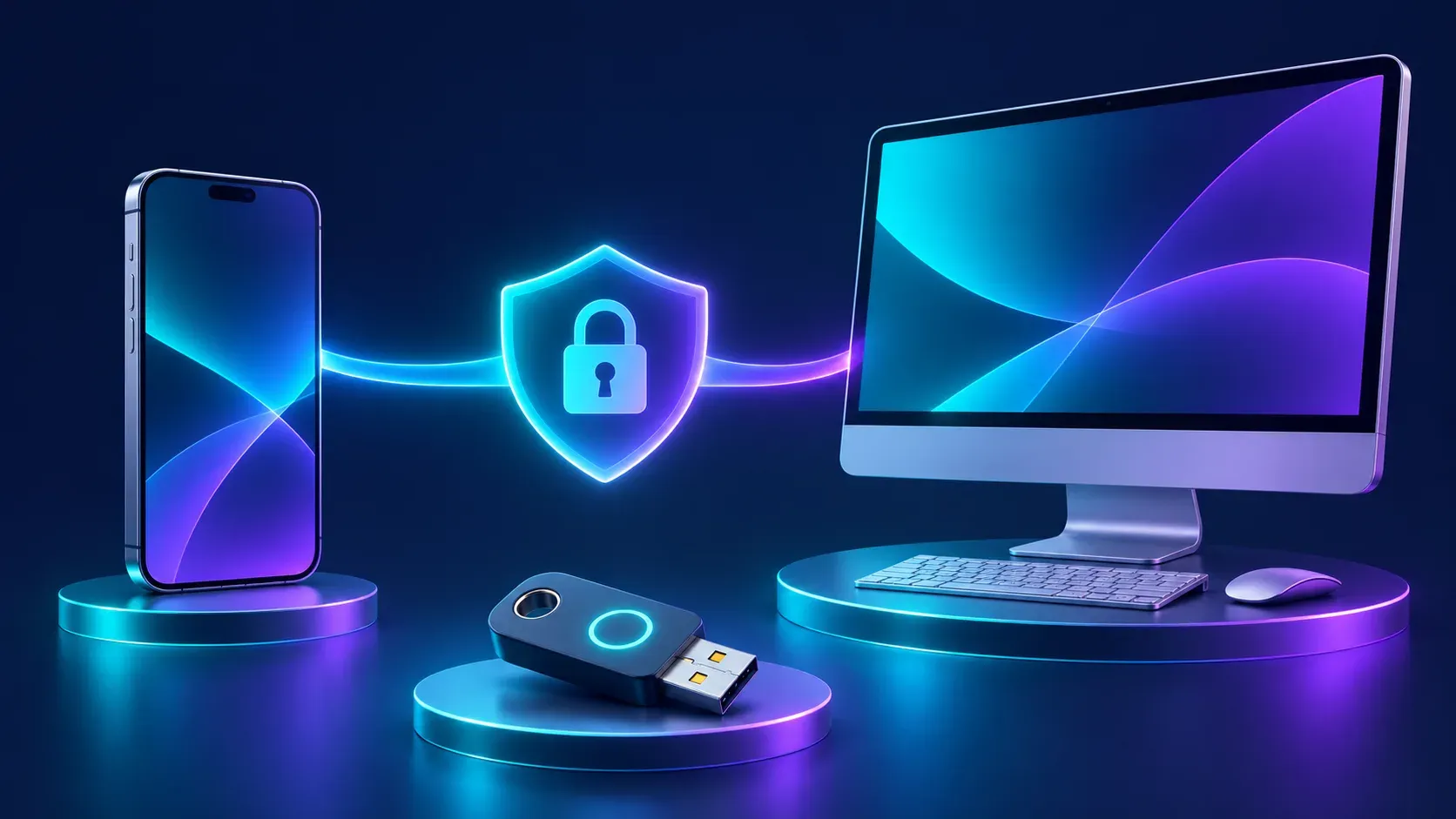
Being away from your desk should not require forwarding every task to yourself. But a phone app and the computer running an agent are different parts of the system: the phone needs a reachable installation, and losing the phone should not mean giving up control of every other device.
Check which computer is doing the work
Before pairing, make sure your APX installation is running and reachable from the phone on a network you trust. A phone cannot connect to an installation that only listens on the computer itself. Pairing does not keep a powered-off computer running or guarantee that a suspended phone can provide a camera or location.
Pair a single device
The phone guide describes opening the pairing QR from the panel or pairing a mobile browser. The code is short-lived and single-use. Treat it like an access invitation: scan only a code you generated for your own installation and do not post it in a public chat.
A paired device gets its own key rather than the core’s main token. APX lists paired devices so you can remove one without disconnecting all the others. If a phone is lost, revoke its entry and follow your organization’s device-security process.
Test an ordinary request
- Open a conversation on the phone and ask for a harmless status check.
- Confirm the reply belongs to the expected project and installation.
- Test notifications separately; a paired phone may also need notification permission and a working push registration.
- Review any permission request before letting an agent use location or take a photo.
The Android app can lend location and a camera while connected, but pairing is not general access to every phone app or file. A photo is taken by you. Check the guide for current platform availability and features.
Sources
More articles
How to let an AI agent work on a site without sharing your password
A practical guide to browser handoffs, sessions and safer sign-in for AI agents.

Can an AI agent work from WhatsApp or Telegram? What to check first
Plan a chat-based agent workflow around identity, approval, delivery and privacy before connecting a messaging app.
Why an AI agent cannot use a connected tool: an MCP checklist
Troubleshoot an MCP connection in stages: scope, approval, sign-in, tool discovery and a safe test.