
Integrations and variables
Integrations
Section titled “Integrations”An integration is an account you connect once, such as GitHub or Notion. Connecting it stores its token as a variable and adds its MCP server as one of your global servers, so your agents can use its tools right away.
-
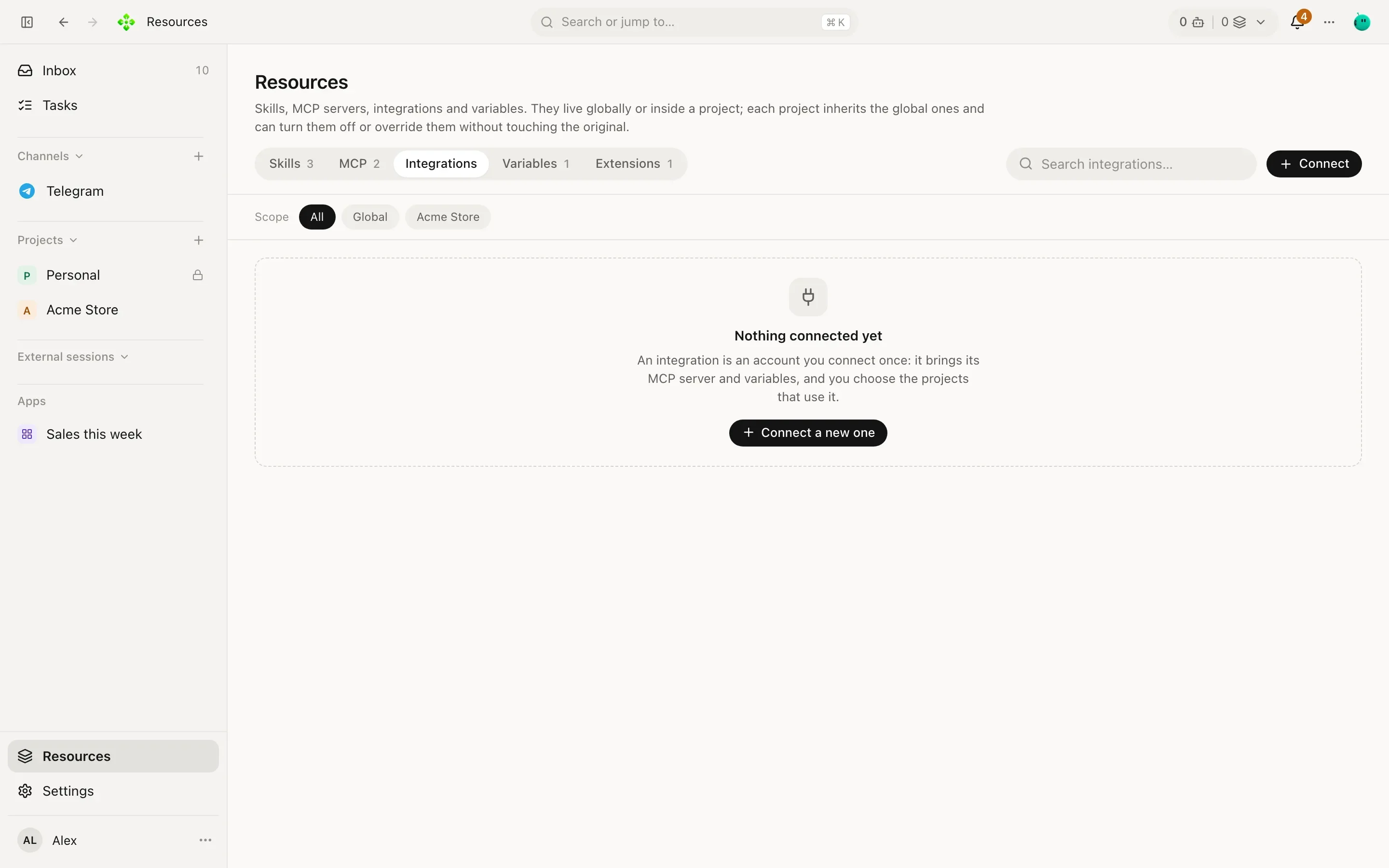
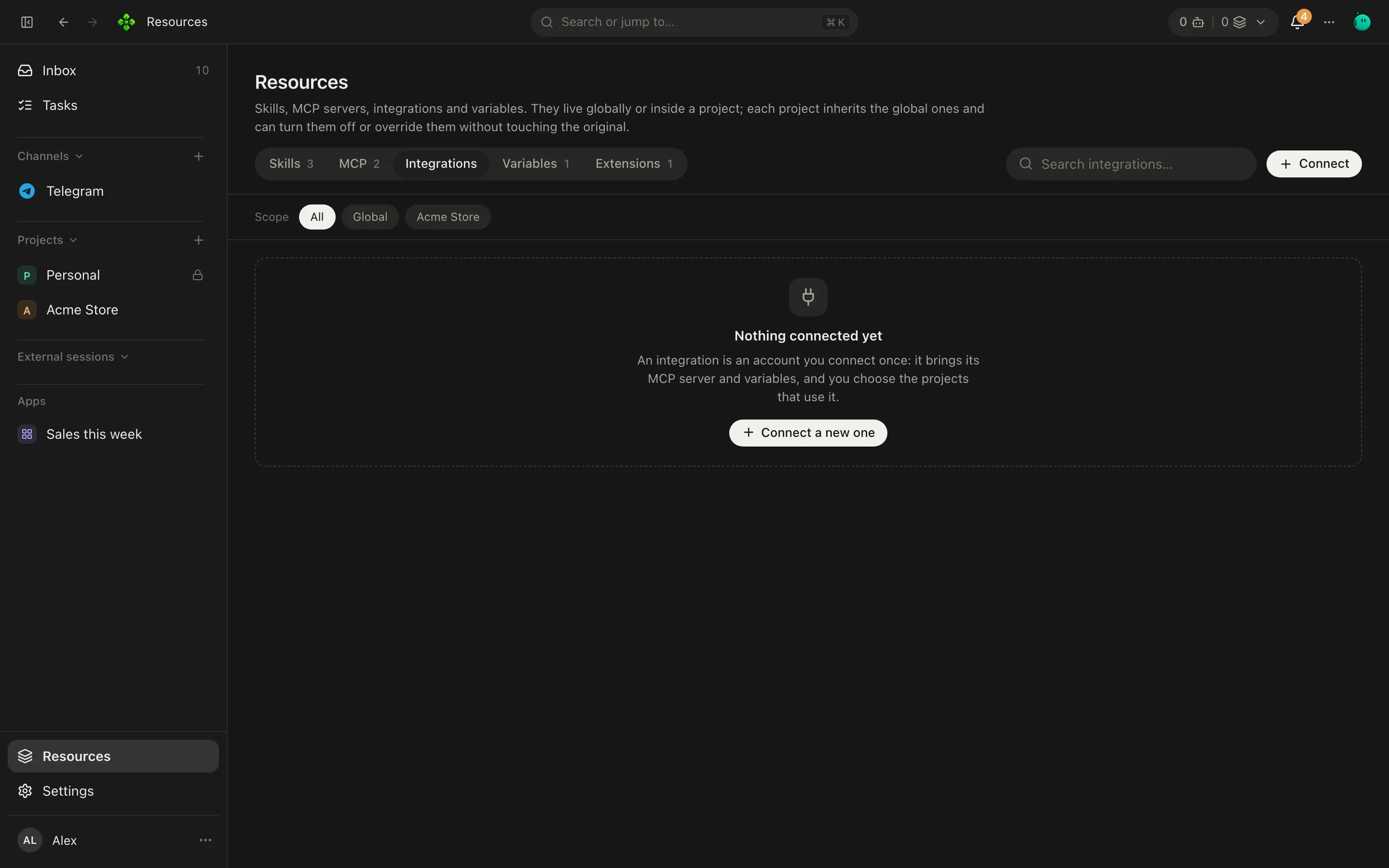
Open Resources › Integrations and press Connect.
-
Pick one from Connect an integration and fill in its fields. Each field links to Where to get it.
-
Press Connect. Tokens and keys go to your secret store; agents use them through the server and never see them.
-
Under Where it is used, choose Every project or only the projects you pick.
You can also let an agent bring it up: ask for something an app or channel you have not connected would do (“open my Figma file”, “send it on WhatsApp”) and the agent answers with a Suggested connections card. Connect opens that integration’s form right in the chat, or that channel’s setup in Settings › Channels; once an integration is connected, the agent is told and goes on.
| Integration | Gives your agents | You provide |
|---|---|---|
| GitHub | Repositories, issues and pull requests | A personal access token |
| Notion | Pages and databases of your workspace | An integration token |
| Slack | Channels, messages and threads of your workspace | A bot token |
| Sentry | Errors and issues of your projects | An access token |
| Brave Search | Web search | An API key |
| Obsidian | Read and write the notes of your vault | The vault’s folder |
| Asana | Native workspace, project and task reads; task creation and updates | A personal access token |
| Google Calendar, Gmail, Google Drive | Native calendar, mail and Drive tools | Sign in with Google |
| Home Assistant | Lights, sensors and automations of your home | Its address and a long-lived access token (turn on its MCP Server integration) |
| n8n | Run the workflows of your n8n instance | Its address and its MCP access token |
| Linear, Jira and Confluence, GitLab, Vercel, Supabase, Stripe, Todoist, Airtable, Figma, Cloudflare, Netlify, Neon, ClickUp, monday.com, Canva, Miro, Dropbox, Calendly, Datadog, Grafana, PayPal, WordPress.com, Hugging Face, Railway, Intercom, Attio, Close, Klaviyo, Mixpanel, Amplitude, Better Stack, Square, Fireflies, Strava, Semgrep, CircleCI, Postman, Prisma Postgres, Cloudinary, Craft, Webflow, Gamma | Each app’s own MCP server | Nothing to type: you sign in in your browser |
| Context7, DeepWiki, Wolfram, AWS Knowledge, Microsoft Learn | Documentation and knowledge | Nothing: no account |
| Microsoft 365, Box | Marked Soon: their sign-in needs an app APX registers with them |
The catalog has a search box. An app you sign in to runs through mcp-remote: connecting starts it, it registers
itself with the app and opens the app’s sign-in page in your browser. Until you finish, the integration shows
Sign in; press it to open the page again.
Asana uses the REST API directly, not an MCP server. Create a personal access token at
Asana developer apps and enter it in the connection form.
APX validates the token before saving secret://asana-token. An empty field keeps the saved token.
The native asana_read tool supports workspaces, projects, tasks and task details, with pagination.
Task lists exclude completed tasks by default; pass completed: true to include them. Results include notes, links and sections.
Create a task with an Asana project or a workspace (for a task without a project).
asana_write creates or updates tasks (name, notes, completion, assignee and due date), with owner authorization.
The per-project switch controls availability, not Asana object permissions: the shared account can access whatever its token permits.
Do not repeat a create after an unknown outcome without checking Asana first; writes are not automatically retried.
For mailbox connections, drafts and local sender signatures, see Email and signatures.
Each Google part connects on its own, so you choose what your agents reach: Google Calendar, Gmail and Google Drive. The access Google grants stays in this computer’s secret store, and you can remove it at myaccount.google.com/permissions.
- Calendar starts on APX sign-in: click Sign in with Google and accept in your browser, with no Google Cloud setup.
- Gmail and Drive start on My own OAuth client, which reaches all of them. The dialog walks you through creating it in Google Cloud once (about 5 minutes); then upload the JSON Google gives you. Publish the app (In production): in Testing, Google ends the access after 7 days. One sign-in can connect the other parts too, with the same client.
- APX sign-in (limited) is there for Gmail and Drive as well, for sending mail and the Docs APX writes.
| Part | What agents can do | Asks you first |
|---|---|---|
| Google Calendar | Read events, find free time, create and change events, add or remove guests, add a Meet link, cancel | Inviting people and cancelling |
| Gmail | Send mail. With your own client: also search and read mail, and write drafts | Sending always asks; writing a draft asks |
| Google Drive | Write Docs and share them; find and read them. With your own client: find and read your whole Drive (Docs, Sheets, Slides, text files) | Sharing |
APX’s sign-in asks Google only for what it can get verified without a paid security review, so it cannot read your mail or the rest of your Drive. To read mail, connect your mailbox in Channels › Email; for the whole of Gmail and Drive, use your own OAuth client.
An event only on your calendar goes in without asking. Events, mail and files come back to agents as outside data, never as instructions. With your own client, Google shows “Google hasn’t verified this app”: choose Advanced and continue.
GitHub is reached at GitHub’s own server (api.githubcopilot.com/mcp) with your token. That server may ask for
Copilot access: connecting asks it first, and if it refuses your token APX runs the earlier open GitHub server
instead, with the same token. An integration connected
before this change keeps its old server until you edit and save it.
The MCP-based servers start with npx, so the machine running the core needs Node.js and internet access the first time
each one starts. Once connected, an MCP-based integration behaves like any other MCP server: it has tool
permissions, and agents reach its tools through mcp_search and mcp_call.
To change a token, open the integration and edit it (an empty secret field keeps the stored one). Disconnect removes it.
Variables and secrets
Section titled “Variables and secrets”Variables are where APX keeps tokens, API keys and passwords for your MCP servers, model providers and channels.
Anything that needs one refers to it by name, as secret://NAME; the value is read only by the code that uses it,
right when it uses it. Agents can use a variable by name but never see its value, and it never goes into a prompt or a
log.
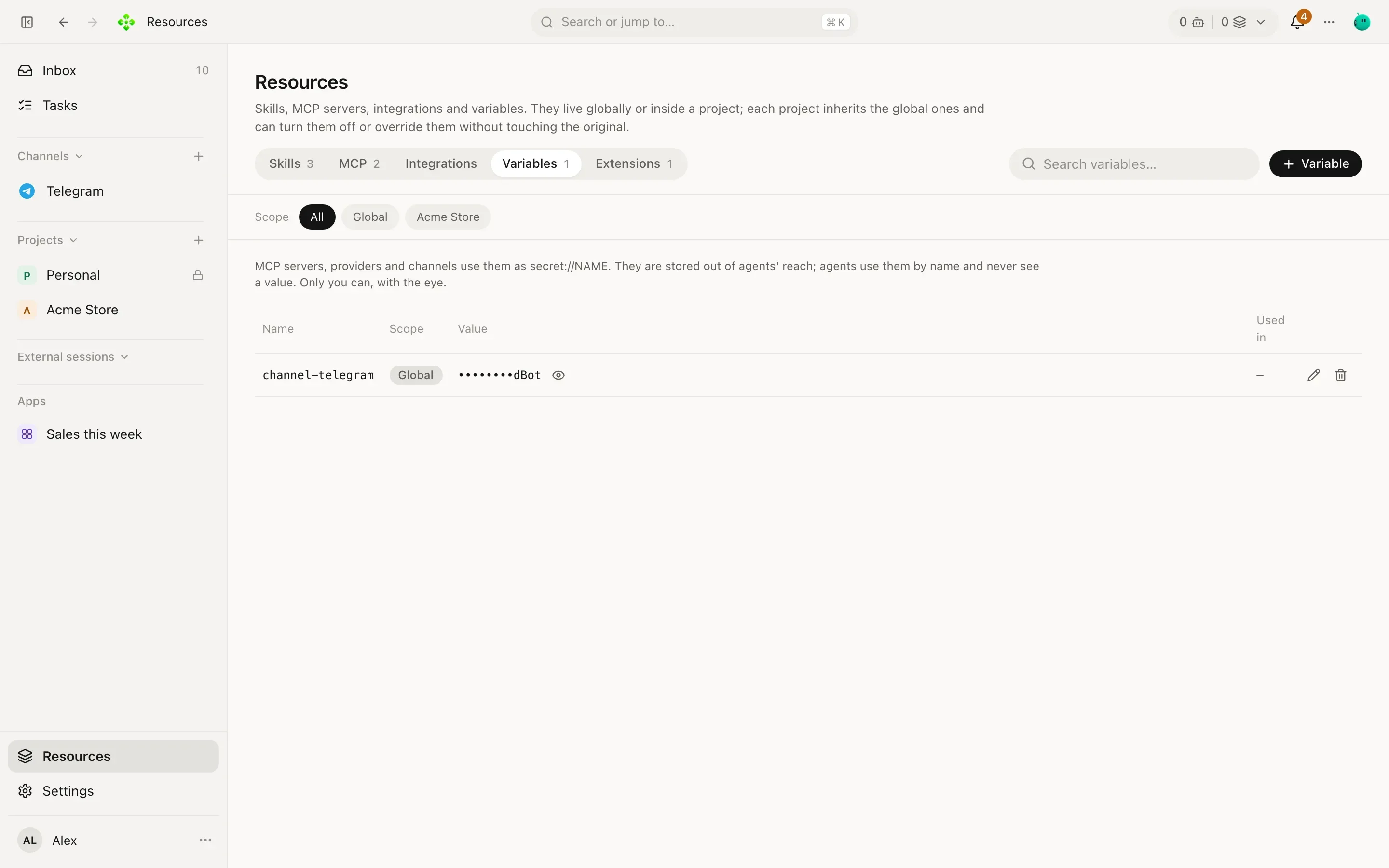
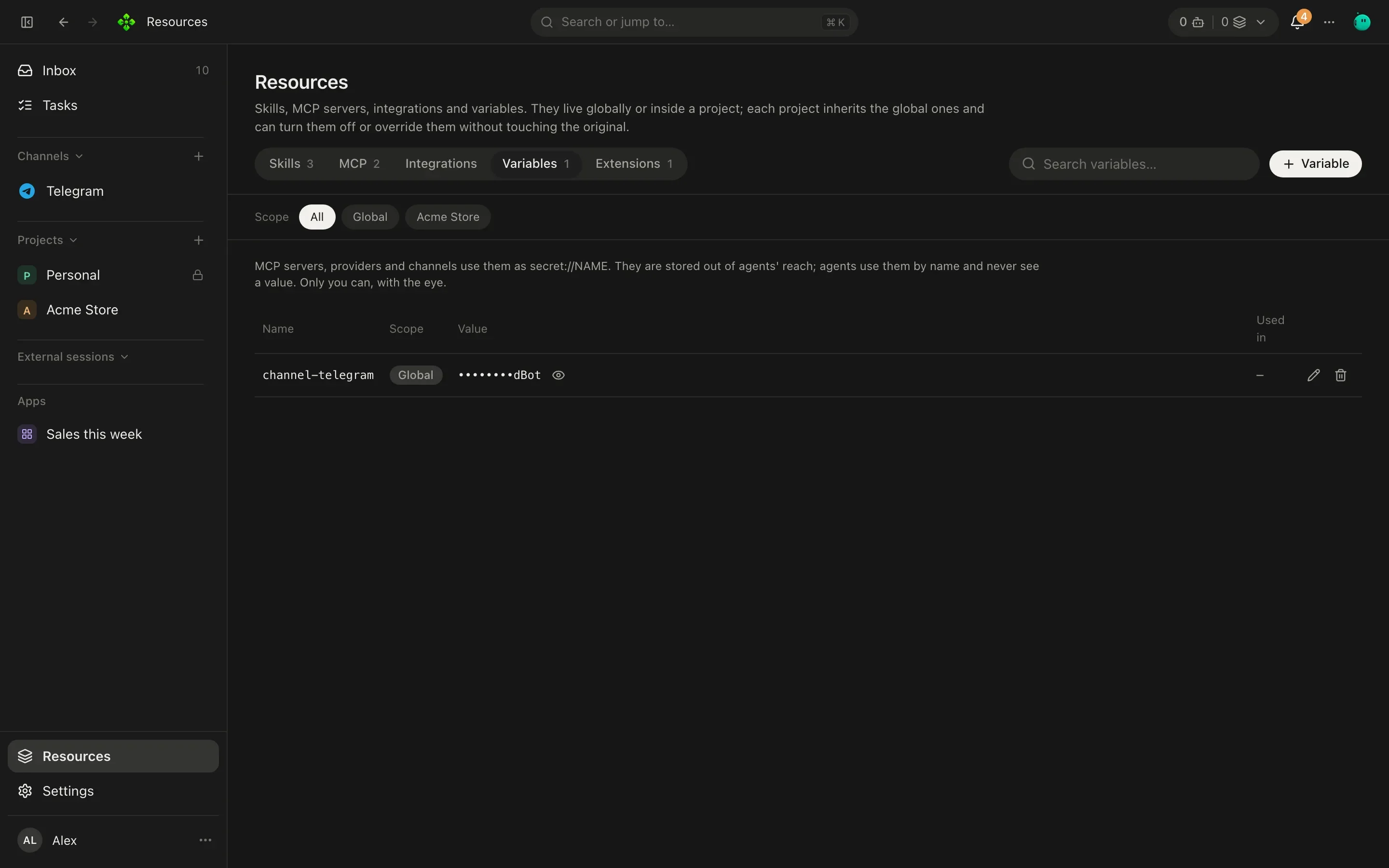
Manage them in Resources › Variables: + Variable adds one (the value goes straight to the core), the eye shows a value to you, and each row says where it’s used.
Where values are stored
Section titled “Where values are stored”- macOS: in your login Keychain.
- Linux: in your keyring (GNOME Keyring, KWallet or any Secret Service).
- Windows: in
secrets.dpapi, which only your Windows account can decrypt. - A Linux server with no keyring, or any core started with
APX_SECRETS=file: insecrets.jsoninside APX’s home, readable only by your user (mode 600).
A project’s own value
Section titled “A project’s own value”A variable can have a value only for one project. In that project’s chats, your MCP servers use it instead of the global one (the row says Over the global). Use it when a project needs a different account, like a client’s GitHub token.
From the terminal
Section titled “From the terminal”The value is read from standard input, never from the command line, so it doesn’t end up in your shell history or the process list:
pbpaste | apx secrets set github-token # macOS: from the clipboardapx secrets set github-token < token.txt # or from a fileapx secrets # names and when they changed; never the valuesapx secrets rm github-token❯ apx secrets github-token 2026-10-08T09:12:44.120Z brave-search-key 2026-10-02T17:30:05.981Z