
Code
APX is not only for office work. An agent can work inside a project’s folder: read the code, edit files, run tests and commands, and show you every change as a diff. You can do it in two ways: a code thread with one of your agents, or a session with Claude Code or Codex themselves, right inside APX.
Code threads
Section titled “Code threads”A code thread is a chat whose agent works in a folder of a project. Its header shows the folder and the write policy, so you always know where it is working and how freely.
In the Inbox, New chat › New code session with and pick an agent. The option shows when the project’s folder is on this machine.
From inside the project’s folder (or with --cwd):
❯ apx chat "Add a free-shipping banner over 50 to the cart page" --code --write ask
code thread th_8c41d07e2b9a5f13 · web/cart · write: ask
The folder must be inside a registered project (apx projects register <folder>). Without --agent, Home does
the work.
Where a task changes code
Section titled “Where a task changes code”On the development branch after 2.11.0, before changing code for a task, the agent follows the project’s saved choice of working in the checkout or in a Git worktree. If no project note says which, it asks: Worktree now, Worktree always, Here now, Here always, or Other. An “always” answer is saved for that project; “now” applies to this choice only. This chooses the working location, not a different write policy or autonomy level.
When using a worktree, the agent first checks existing worktrees and task-related branches and continues in one
that already covers the work. Only if none exists does it create a named branch under the project’s .worktrees/
folder. After merging, it removes the worktree and branch, never while there are uncommitted changes. These are
instructions to the agent, not a guarantee that Git changes have been merged or cleaned up automatically.
The write policy
Section titled “The write policy”| Policy | What it means |
|---|---|
Asks before changes (ask) | The default. Edits and commands go through the usual approvals of the agent’s autonomy. Codex cannot ask mid-turn, so under this policy it only reads. |
Edits freely (auto) | Claude Code and Codex sessions edit files inside the folder without asking (never git’s config, .apc/ or AGENTS.md). Commands still follow the agent’s autonomy. |
Read-only (read-only) | Only reads. Anything that would need your OK is refused. |
Working in the folder from any chat
Section titled “Working in the folder from any chat”You don’t need a new thread for a quick fix. In a project chat with an agent, open the chat’s menu (More) › Project folder and pick a policy; Does not work in the folder turns it back off. Tomás can be planning the launch with you one minute and fixing the cart page the next, in the same chat.
The panels you’ll use
Section titled “The panels you’ll use”Open the side panel from the chat header. Three views matter most when code is involved:
| Panel | What you get |
|---|---|
| Terminal | Every command the agent ran, with what it printed, foreground or background. Open a terminal gives you your own shell in the same folder. |
| Files | The chat’s folder (Chat folder) and its scratch files (Temporary). Open a file to read it; Markdown reads as a page. |
| Changes | The edits the agent recorded, for the Last turn or All turns, and the Current folder’s git diff, file by file. |
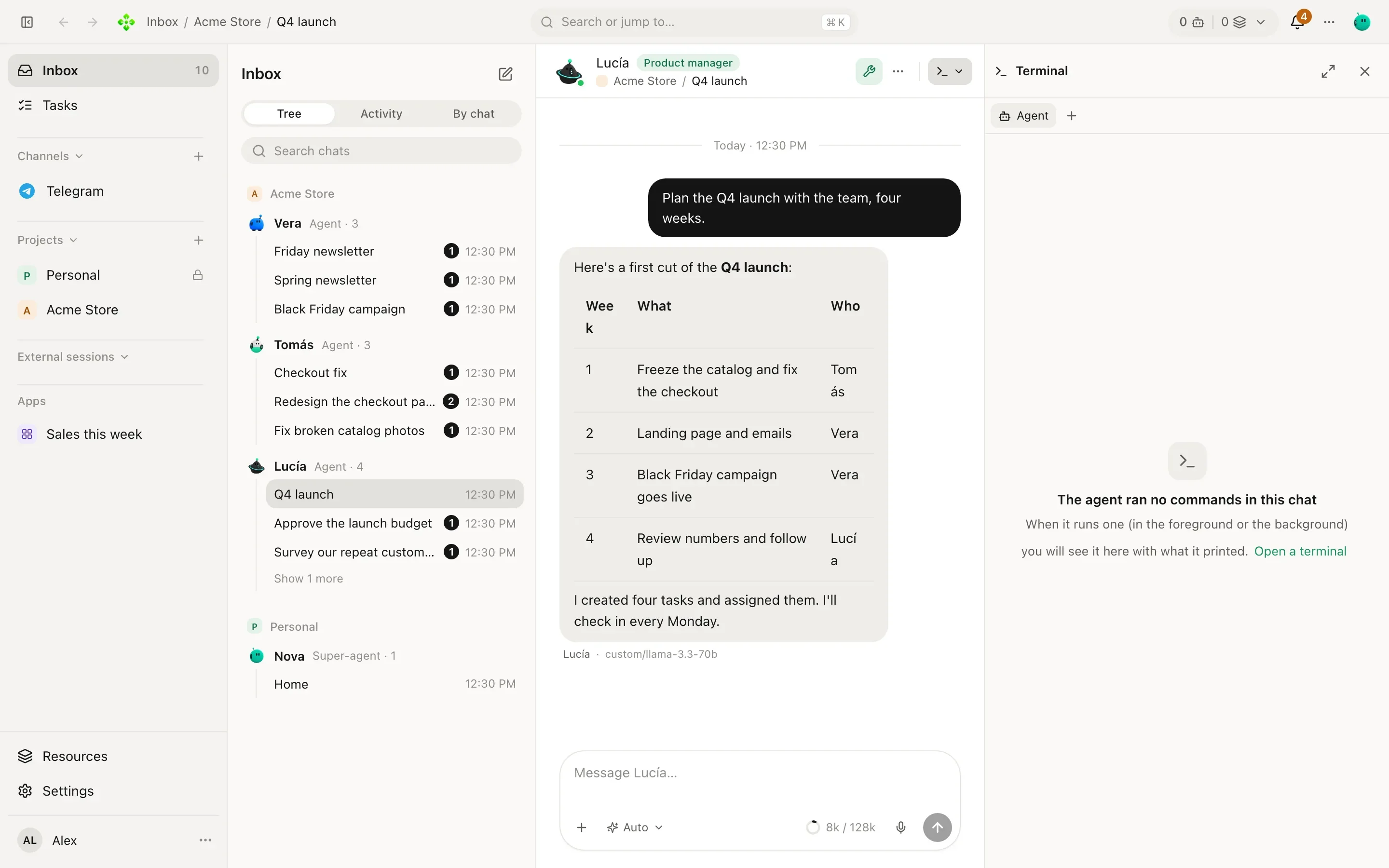
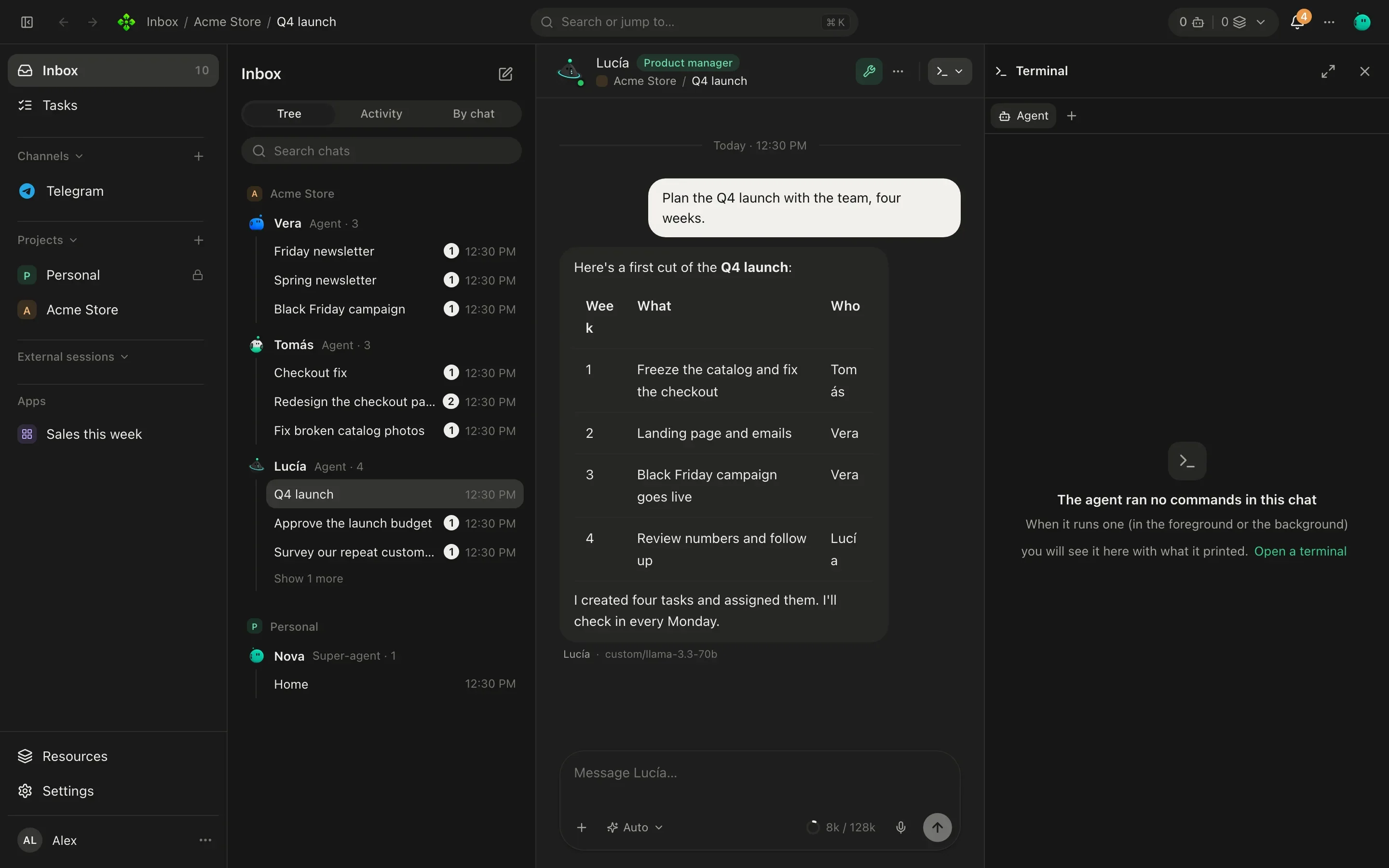
When the agent needs you to run something itself (a command with sudo, say), it writes it as a shell block with
Run in a terminal. It runs on a real terminal in the side panel, so you can type the password there, and the agent
hears how it ended.
Git: the project’s Files tab
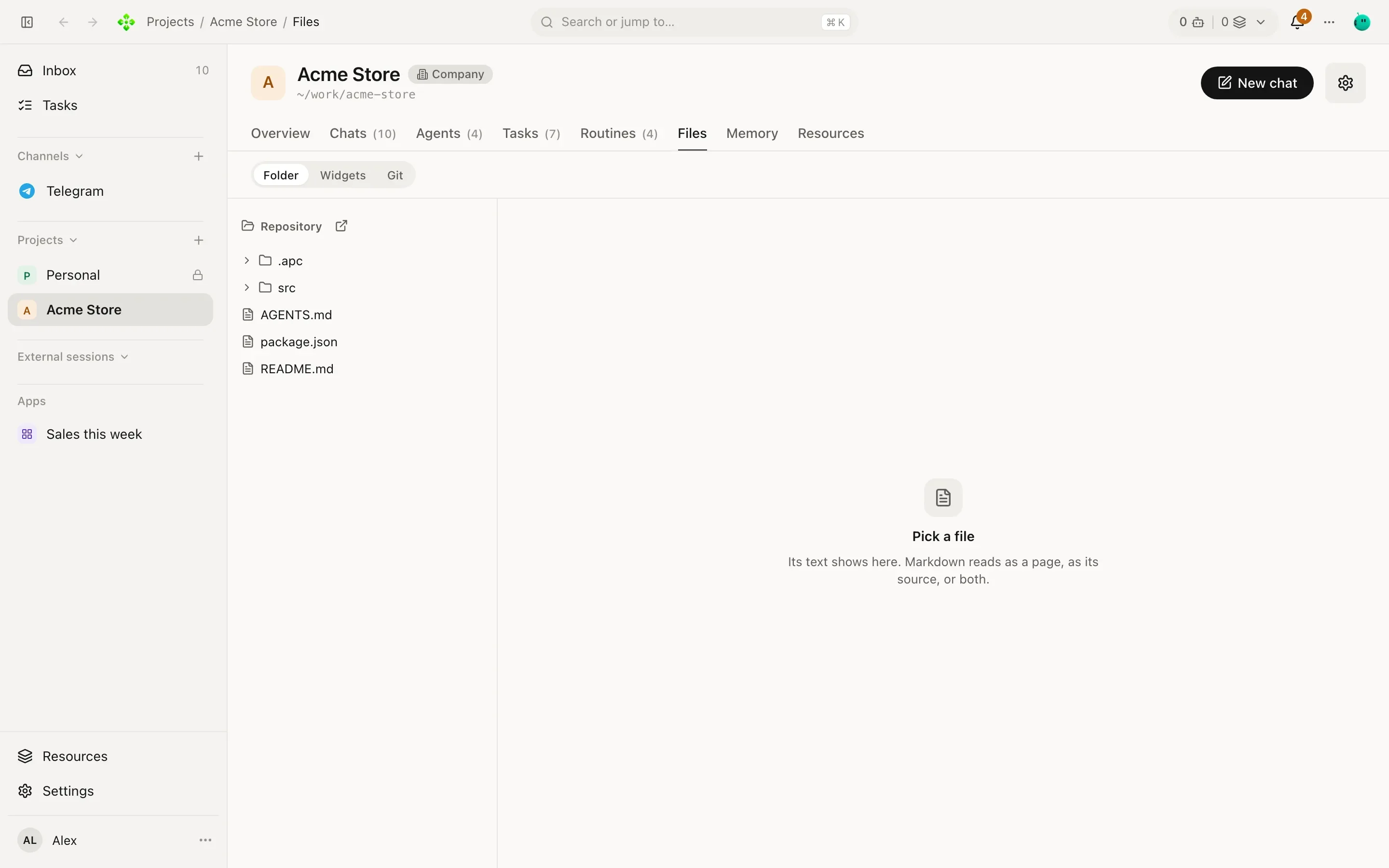
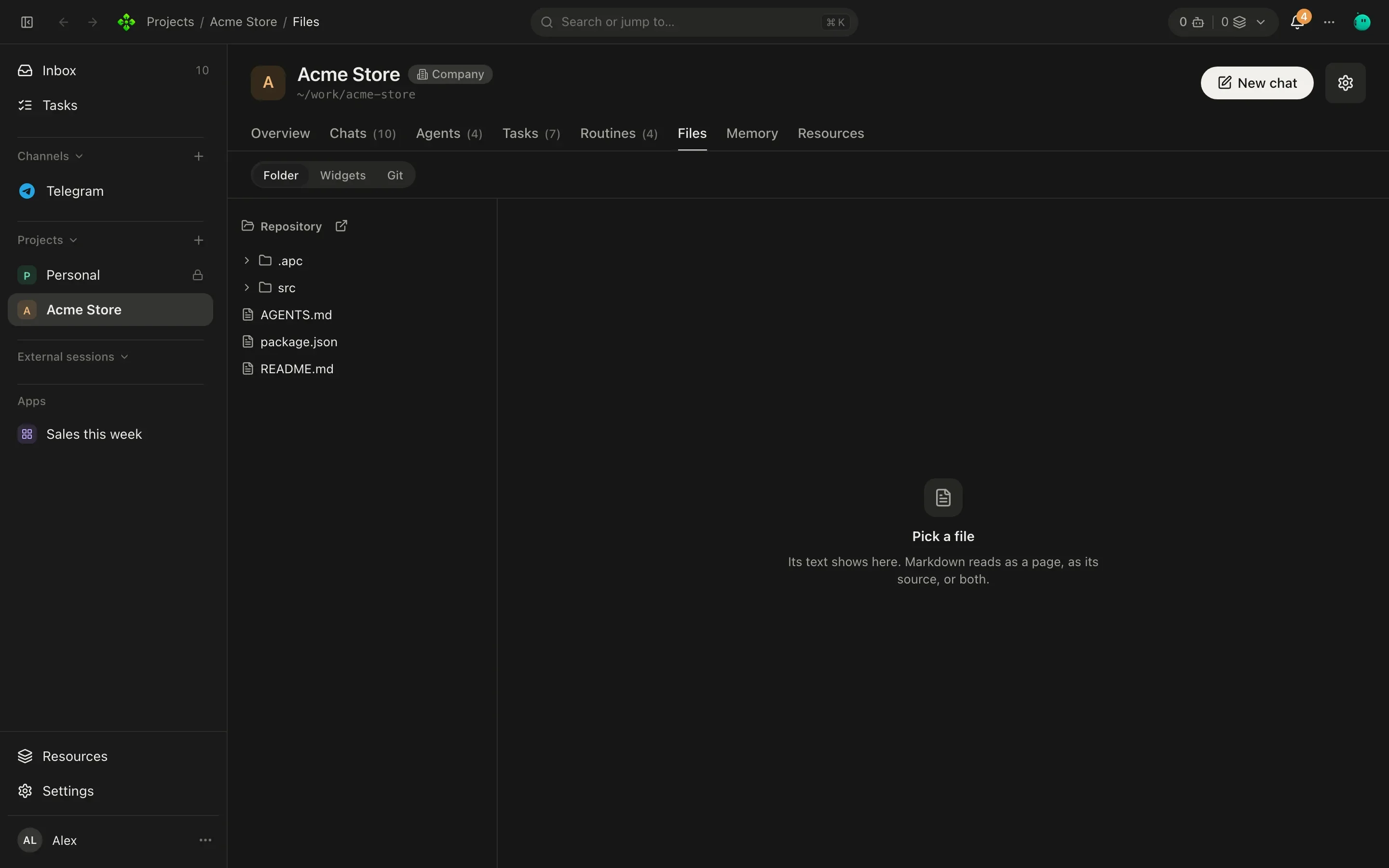
Section titled “Git: the project’s Files tab”For commits, go to the project’s Files tab › Git (Source control). There you can stage and unstage files, Commit (or Write the message with AI), pull, push, fetch, stash, undo the last commit, switch branches and read the history.
Claude Code and Codex sessions
Section titled “Claude Code and Codex sessions”If you use Claude Code or Codex, APX can host their sessions. You talk to the engine itself, with your own login and plan, and APX gives it its chat, panels, approvals and history.
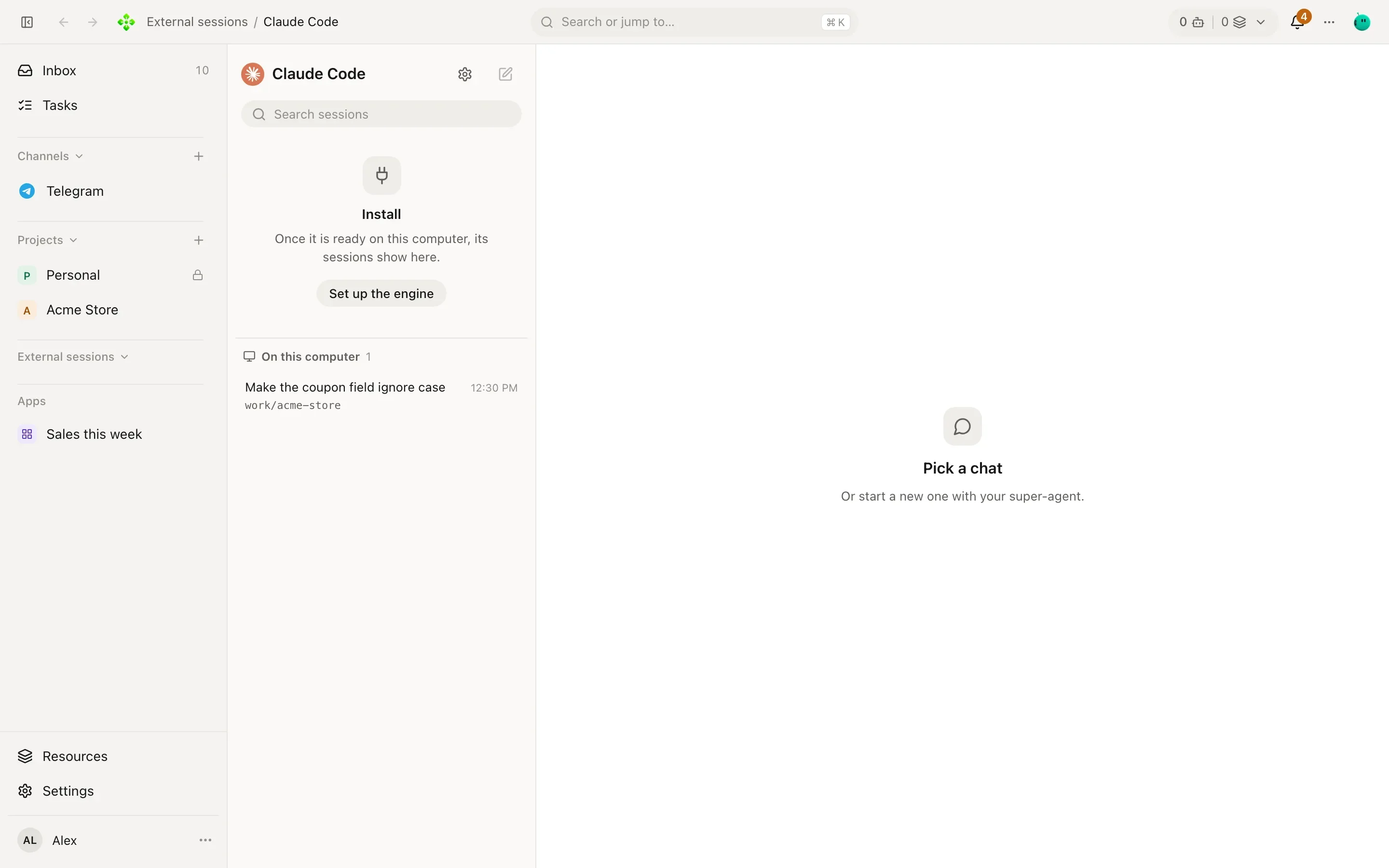
External sessions in the sidebar lists each coding CLI installed on this computer. Pick one:
- Make sure it is signed in. Settings › External sessions shows each CLI’s state (for Claude Code, open it in a
terminal and sign in; for Codex, run
codex login). - New session asks for a project with a folder: the session works there.
- Write as you would in the CLI. Its tool calls, edits and commands show in the chat and the side panels like any other.
Resuming your own sessions
Section titled “Resuming your own sessions”Below the sessions started in APX, On this computer lists the Claude Code and Codex sessions you already have on
this machine (from ~/.claude and ~/.codex), with their folder. Click one to go on with it here: the engine
picks up its own session, history included, and from then on it lives in APX too.
Other coding CLIs that speak the Agent Client Protocol (OpenCode, Qwen Code, Gemini CLI and others) show up in External sessions as well. That support is partial.
Aider and Antigravity
Section titled “Aider and Antigravity”APX also supports Aider (aider) and headless Antigravity (agy) as one-shot CLI harnesses, not ACP
agents. Install the CLI on the core’s machine and configure its own credentials first. Refresh Settings →
External engines, then open its entry under External sessions and start a chat in a project folder.
A GUI-only Antigravity installation is not runnable: APX does not launch the editor and pretend it returned an answer.
The catalog offers CLI default; the CLI’s configuration chooses the model. A session model reference such as
aider/<model> or antigravity/<model> passes that model to --model. These harnesses cannot be an agent’s model,
an install default or part of a router chain. Authentication is checked on invocation, not claimed by discovery.
Each turn starts a fresh process and replays the projected text history. There is no external session resume,
per-tool trace, live steering, image input or token accounting. APX records one execution step and persists success,
failure or cancellation through its normal run lifecycle. Nonzero exit, empty/binary output and more than 1 MB of
combined output fail explicitly; stderr is not copied into errors. A turn’s cancellation kills the process, with a
10-minute absolute invocation limit in addition to APX’s run deadline. On POSIX, termination targets the process
group; Windows uses taskkill /T /F to terminate the process tree.
Windows .cmd and .bat launchers are not supported: APX never enables a shell to run a shim. If discovery
returns one, the engine is unavailable and invocation is refused before spawning. Use a native executable instead.
Windows discovery and execution remain unverified; do not assume an npm shim installation is runnable.